

How to Secure Your WordPress Website from Hackers and Malware Attacks
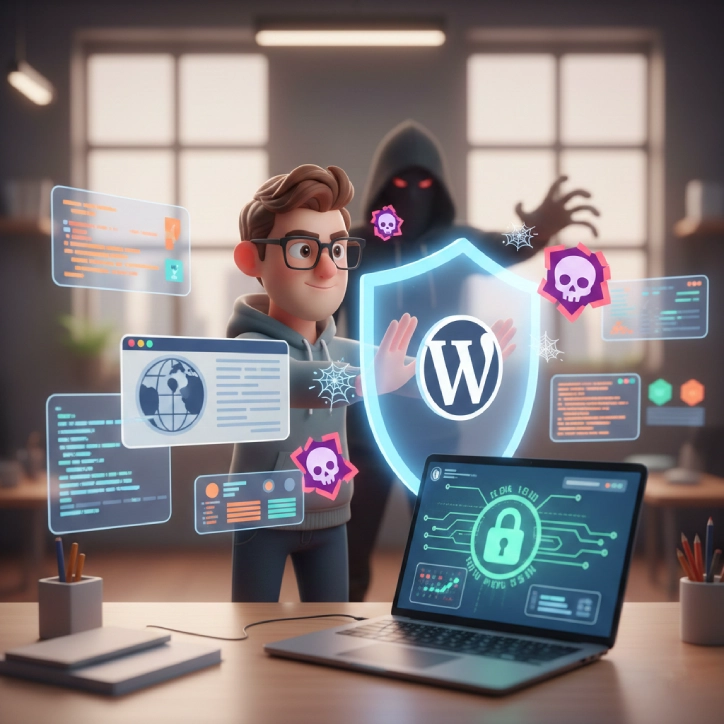
Website security is no longer optional. With thousands of WordPress websites being hacked every day, protecting your site has become a top priority. A hacked website can lead to data loss, SEO penalties, blacklisting by Google, and loss of customer trust.
In this guide, you’ll learn how to secure your WordPress website using security plugins, clean hacked files, and protect your site from future cyberattacks.
Why Do WordPress Websites Get Hacked?
Most website owners believe hackers target only big websites. In reality, small and medium websites are attacked more frequently because they often lack proper security.
Here are the major reasons why WordPress sites get hacked:
1. Outdated WordPress Core, Themes, and Plugins
Running outdated software creates security loopholes that hackers exploit easily.
2. Weak Login Credentials
Simple usernames and passwords make brute-force attacks successful.
3. Pirated Themes and Plugins
Nulled or cracked themes often contain hidden malware.
4. Poor Hosting Security
Low-quality hosting providers lack proper firewalls and protection.
5. No SSL Certificate
Websites without HTTPS are vulnerable to data interception.
6. No Security Plugin Installed
Without monitoring and firewall protection, attacks go undetected.
Common Signs Your Website Is Hacked
Before cleaning your website, you must identify hacking symptoms:
Website redirects to spam sites
- Unknown admin users created
- Suspicious pop-ups or ads
- Slow loading speed
- Google “Deceptive Site” warning
- Hosting suspension
- Files modified without permission
If you notice any of these signs, act immediately.
Best WordPress Security Plugins
Installing a trusted security plugin is your first line of defense.
Recommended Plugins:
1. Wordfence Security
- Firewall protection
- Malware scanner
- Login security
- Real-time threat defense
2. Sucuri Security
- Website firewall
- Malware monitoring
- Blacklist removal
- Security audits
3. iThemes Security
- Brute force protection
- File change detection
- Two-factor authentication
4. All In One WP Security
- Beginner-friendly interface
- Database security
- Login lockdown
Choose one plugin only. Installing multiple security plugins may cause conflicts.
How to Clean a Hacked WordPress Website
If your website is hacked, follow these steps carefully:
Step 1: Put Your Website in Maintenance Mode
- Prevent visitors from accessing infected files.
- Use maintenance plugins or your hosting panel.
Step 2: Take a Full Backup
Before cleaning, download:
- Website files
- Database
- wp-config.php
This helps restore data if something goes wrong.
Step 3: Scan for Malware
Use your security plugin to run a full scan.
Also scan using online tools:
- Google Safe Browsing
- VirusTotal
- Sucuri SiteCheck
Step 4: Remove Malicious Files
Check these folders:
/wp-content/uploads/
/wp-content/plugins/
/wp-content/themes/
Delete unknown files and folders.
Reinstall:
- WordPress core
- Active theme
- Plugins
From official sources only.
Step 5: Clean the Database
Use phpMyAdmin or plugins to remove:
- Spam links
- Unknown admin users
- Suspicious posts
- Injected scripts
Check:
- wp_users
- wp_options
- wp_posts
Tables carefully.
Step 6: Reset All Passwords
Change passwords for:
- WordPress admin
- Hosting account
- FTP
- Database
Use strong passwords with symbols.
Step 7: Remove Backdoors
Hackers often leave hidden backdoors.
Search for suspicious code:
base64_decode
eval(
gzinflate
Remove infected files completely.
How to Secure WordPress After Cleanup
Cleaning is only half the job. Proper security prevents future attacks.
1. Enable Two-Factor Authentication (2FA)
2FA adds an extra verification layer to login.
Enable it using Wordfence or iThemes Security.
2. Limit Login Attempts
Prevent brute-force attacks by limiting failed login attempts.
3. Hide Login Page
Change default:
/wp-admin
/wp-login.php
To a custom URL.
4. Enable Web Application Firewall (WAF)
A firewall blocks malicious traffic before reaching your website.
Cloudflare and Sucuri provide excellent WAF services.
5. Secure wp-config.php File
Add this line:
define('DISALLOW_FILE_EDIT', true);
This disables file editing inside admin panel.
6. Set Proper File Permissions
Recommended:
- Files: 644
- Folders: 755
- wp-config.php: 600
This prevents unauthorized access.
7. Enable Automatic Updates
Enable auto-updates for:
- WordPress core
- Plugins
- Themes
This reduces security risks.
8. Regular Backups
Always keep daily backups.
Recommended plugins:
- UpdraftPlus
- BackupBuddy
- JetBackup (Hosting)
Store backups on cloud storage.
Best Security Practices for Long-Term Protection
Follow these habits to stay secure:
✅ Use premium hosting
✅ Never use nulled plugins
✅ Update regularly
✅ Monitor security logs
✅ Use CDN + Firewall
✅ Scan weekly
✅ Restrict admin access
✅ Disable XML-RPC if unused
Security is an ongoing process, not a one-time setup.
How Hackers Attack WordPress Websites
Understanding attack methods helps prevent them.
Common Methods:
- Brute-force login attacks
- SQL injection
- Cross-site scripting (XSS)
- File inclusion
- Phishing attacks
- Malware injection
- Spam bots
Most attacks are automated, targeting thousands of sites daily.
Final Thoughts
WordPress is powerful, but without proper security, it becomes vulnerable. By using reliable security plugins, keeping your website updated, and following best practices, you can protect your site from hackers and malware.
If your website has already been hacked, act quickly, clean thoroughly, and strengthen your defenses immediately.
A secure website protects your business, customers, and online reputation.